Spike
Write with AI
The AI tool is embedded in email to improve writing efficiency
Web · Desktop App · UX/UI · 2023
Company Background
Collaborative email platform
Spike is a collaborative email platform that transforms email into a chat-like experience. It brings multiple email accounts into a single interface, enables team collaboration through shared workspaces, and integrates AI tools to support writingand message organization.Write with AI tool created to support users in writing messages more efficiently, reducing the mental effort involved in finding the right words and saving time throughout the writing process.
The Problem
Composing emails is a time consuming process for many users.
Users struggle to quickly create clear, well worded messages.
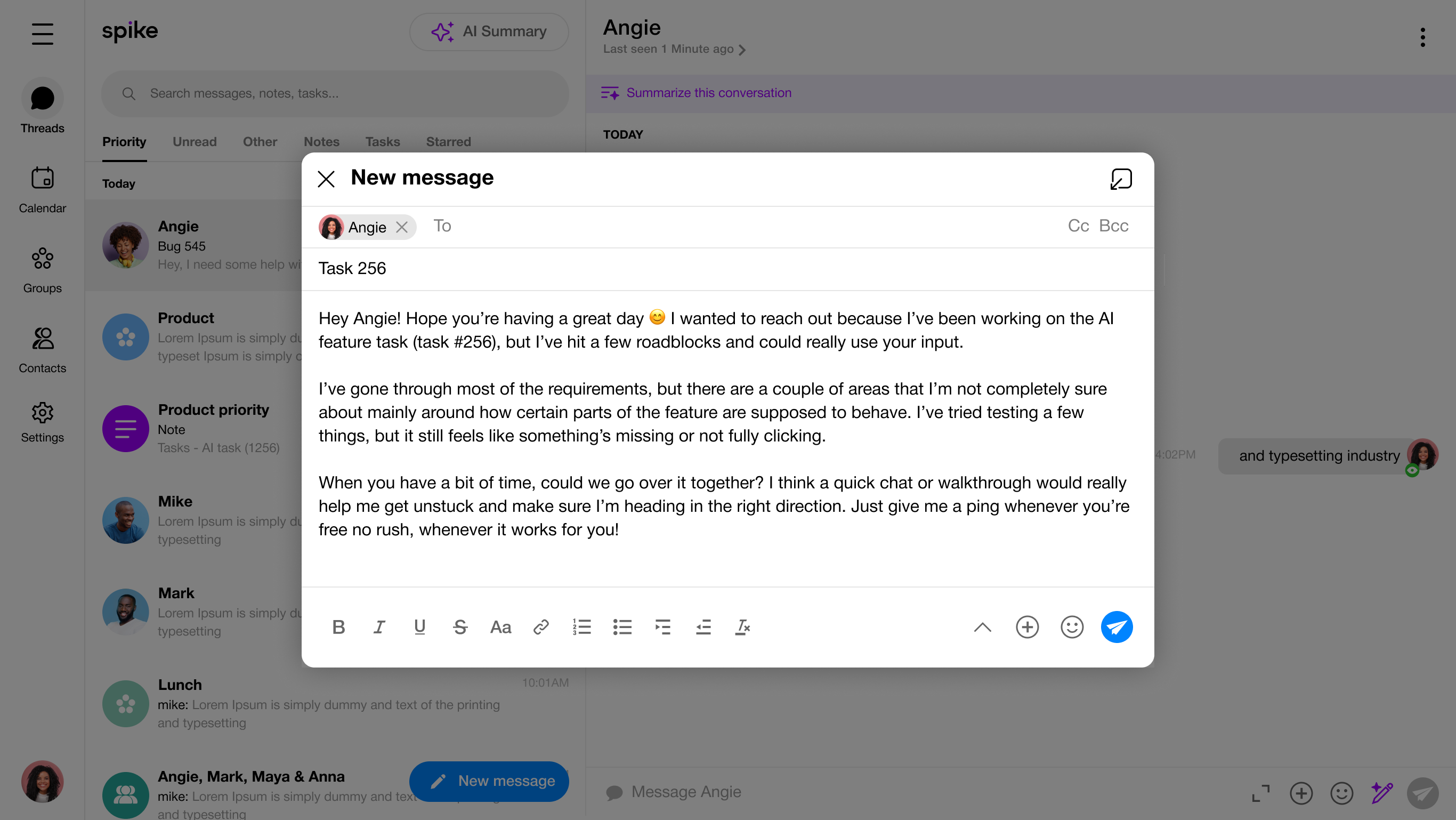
User Research
I analyzed the time required for users to compose an email to identify inefficiencies in the writing process.

Short email
1-2 sentences, quick reply 1-2 min

Basic email
3-5 sentences, standard request or response 2-10min.

Detailed email
explaining an issue, providing some context 10-30min
I gathered information from users to pinpoint the core issue.
“Trying to make my emails sound professional takes a lot of time 10 to 15 minutes for even a short message.”
‘’I know what I want to say, but finding the right words is exhausting. I keep rewriting the same sentences.”
‘’Balancing professionalism and friendliness is hard. I worry my emails come off too formal or too casual.”
“Even simple emails end up taking far longer than expected because I’m constantly editing for tone and clarity.”
“I wish I could write confident emails faster.
After a long day, the mental effort feels exhausting.”
“I often send multiple drafts to myself before it finally feels ready, which makes the process so time-consuming.”
Competitive Research
After my market research, I analysed Spike’s key competitors to identify their strengths, weaknesses, and unique offerings.

Shortwave - Direct
Strength
- Inline AI drafting - Generates professional
- email drafts from short prompts.
- Conversation summarization - Summarizeslong email threads to highlight key points.
Weakness
- Limited tone personalization - Drafts can feel generic or overly formal.
- Reactive assistance - AI only suggests text after prompts, rather than guiding composition.
- Focused on draft generation - Offers minimal support for complex email structure or nuanced messaging.
- Context limitations - Does not fully account for conversation history or recipient-specific nuances.

Notion - Indirect
Strength
- Flexible rewriting - Users could easily rephrase text for tone, clarity,or conciseness.
- Integrated workspace - AI worked seamlessly within Notion documents, reducing tool switching.
- Tone adjustment - Provided options for formality and clarity tailored to different writing styles.
Weakness
- Not email native - Required users to draft in Notion and then exportor copy content into an email client.
- Subscription requirement - Full AI features were behind a paidNotion plan.
- Confusing AI access - AI button is hard to find, making it difficult to use.
Key Insights: Email Writing
I spotted patterns that explained what users want.
01
Drafting emails takes too long
Users often spend several minutes even for short messages thinking about structure, wording, and tone.
02
Tone causes hesitation
Many users worry their emails might come across as too formal, too casual, or unclear, leading to multiple rewrites.
03
Struggling with clarity
Users struggle to convey their message effectively while keeping emails concise and easy to read.
04
Email repetition is tiring
Writing follow-ups, introductions, or requests repeatedly adds mental fatigue and frustration.
05
Low confidence
Users second-guess phrasing or wording, which slows down productivity and increases stress.
Solutions Overview
Once we knew the main problem, we started coming upwith solutions that worked for users and the business.
User Goals
- Create an intuitive AI-powered tool that assists users in writing more polished, coherent, and effective emails.
- Enhance the assistant by adding tone adjustments, enabling users to make their emails shorter or longer based on their needs.
Business Goals
- Offer the AI tool with both free and premium plans, allowing users to access basic features for free while providing advanced options for paid users.
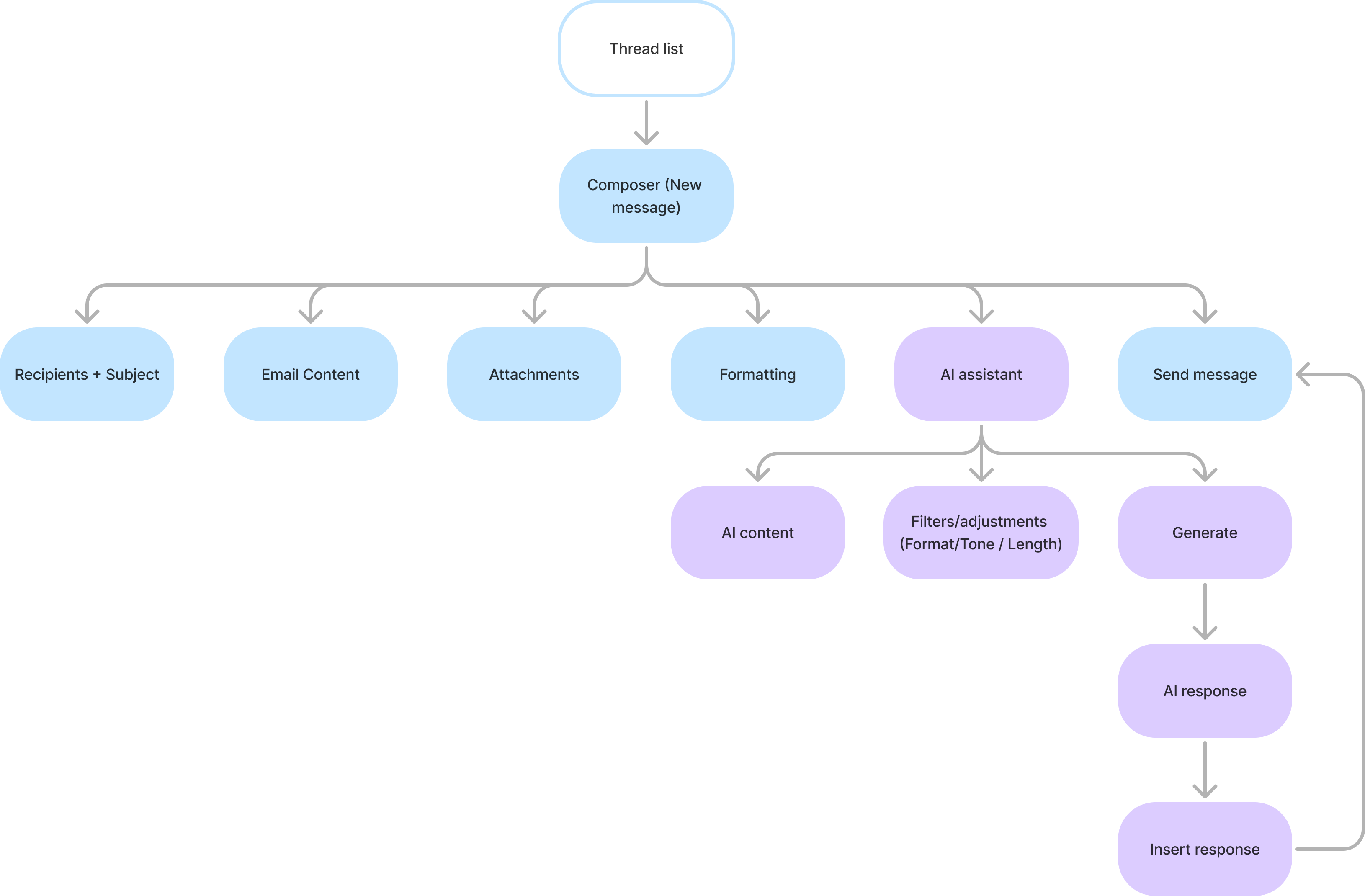
Flowchart
Next, we’ll review the user flow, showing the journey,key features, and design decisions.
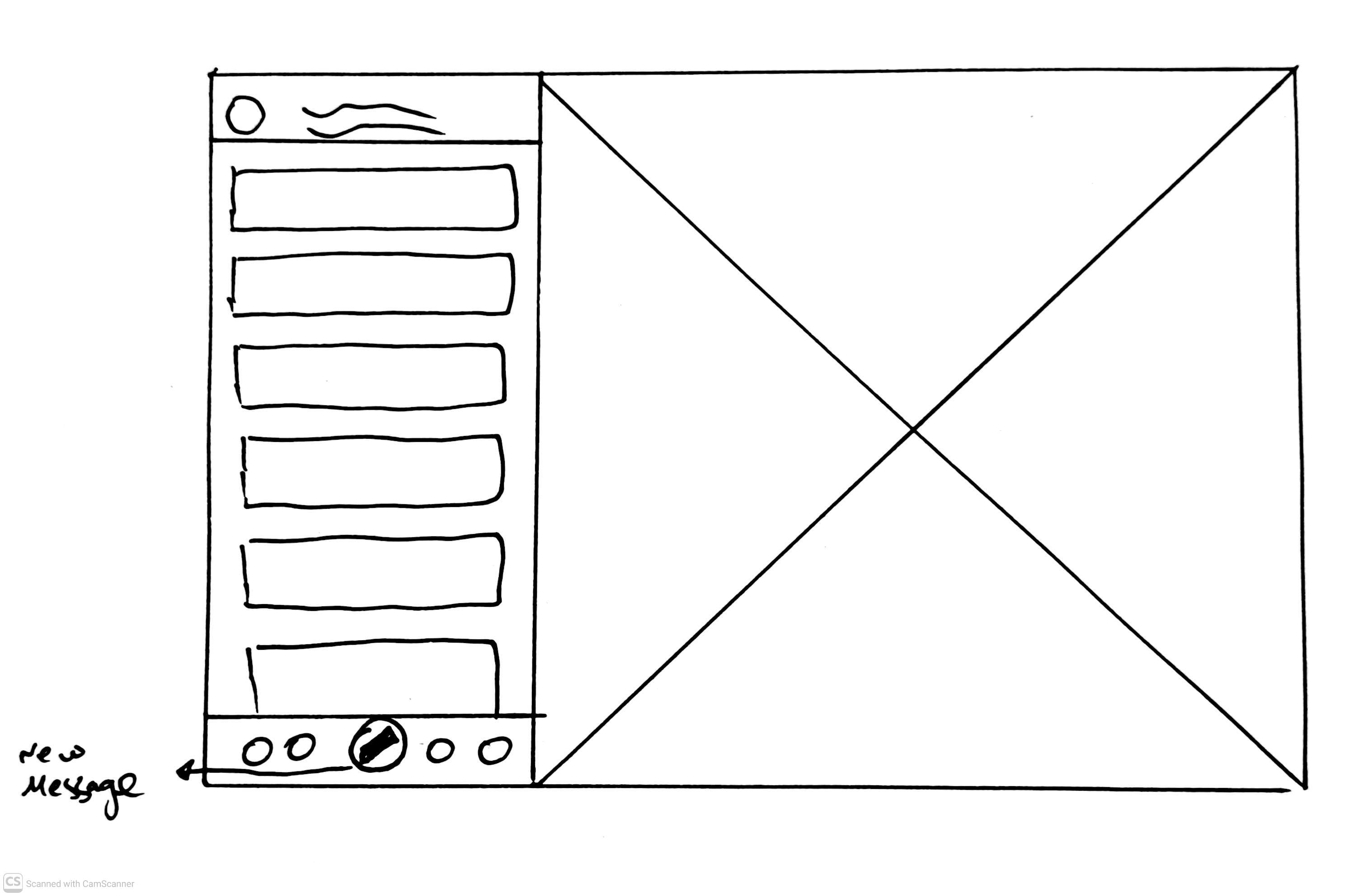
Wireframes
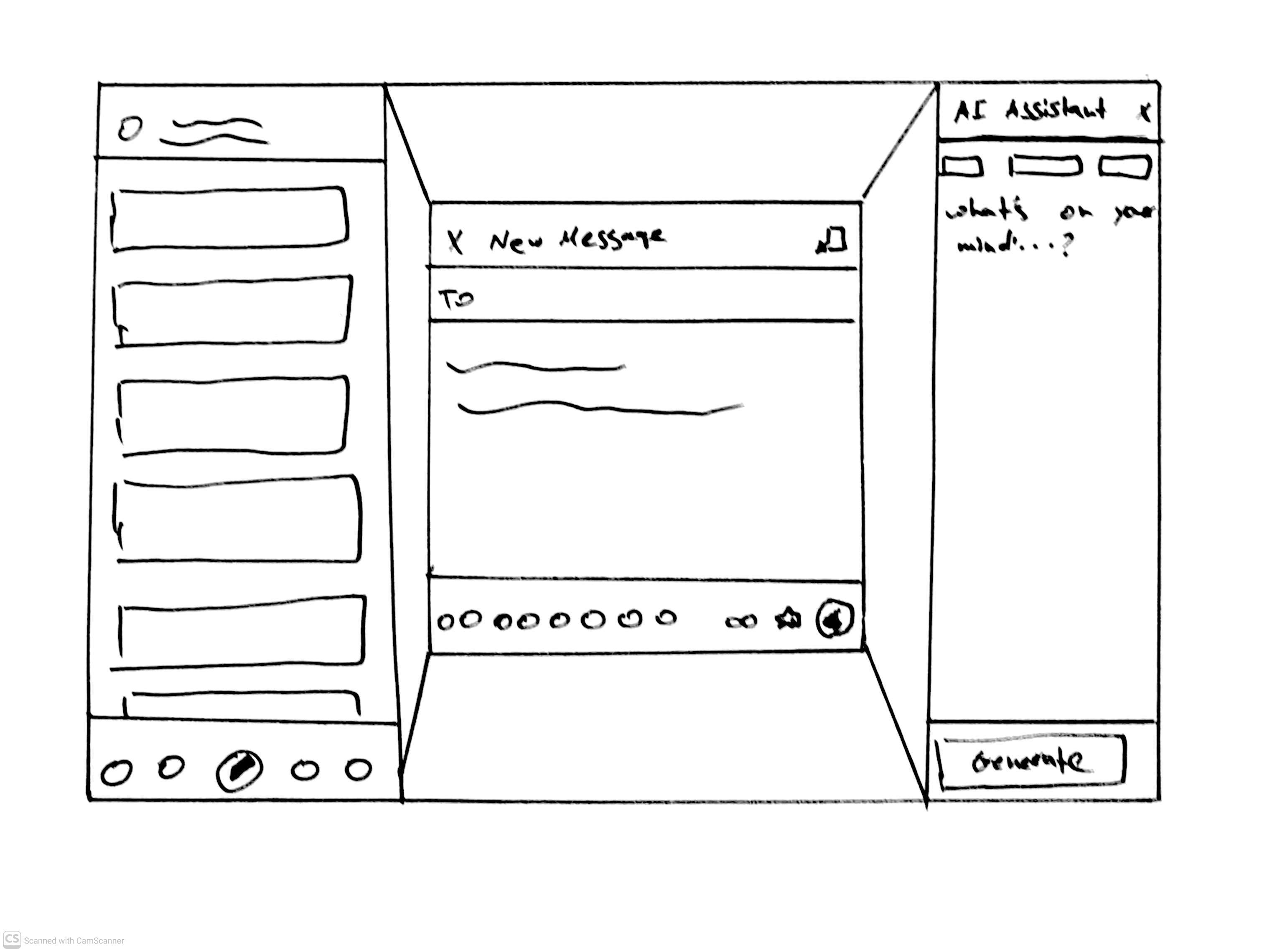
Solution I
Pros
- Keeps focus on writing - AI opens on the side without covering the composer
- Familiar pattern - Right-side panels are common and easy to understand.
Cons
- Tight layout - Three columns can make the writing area feel narrow.
- More visual noise - Extra panel adds complexity.
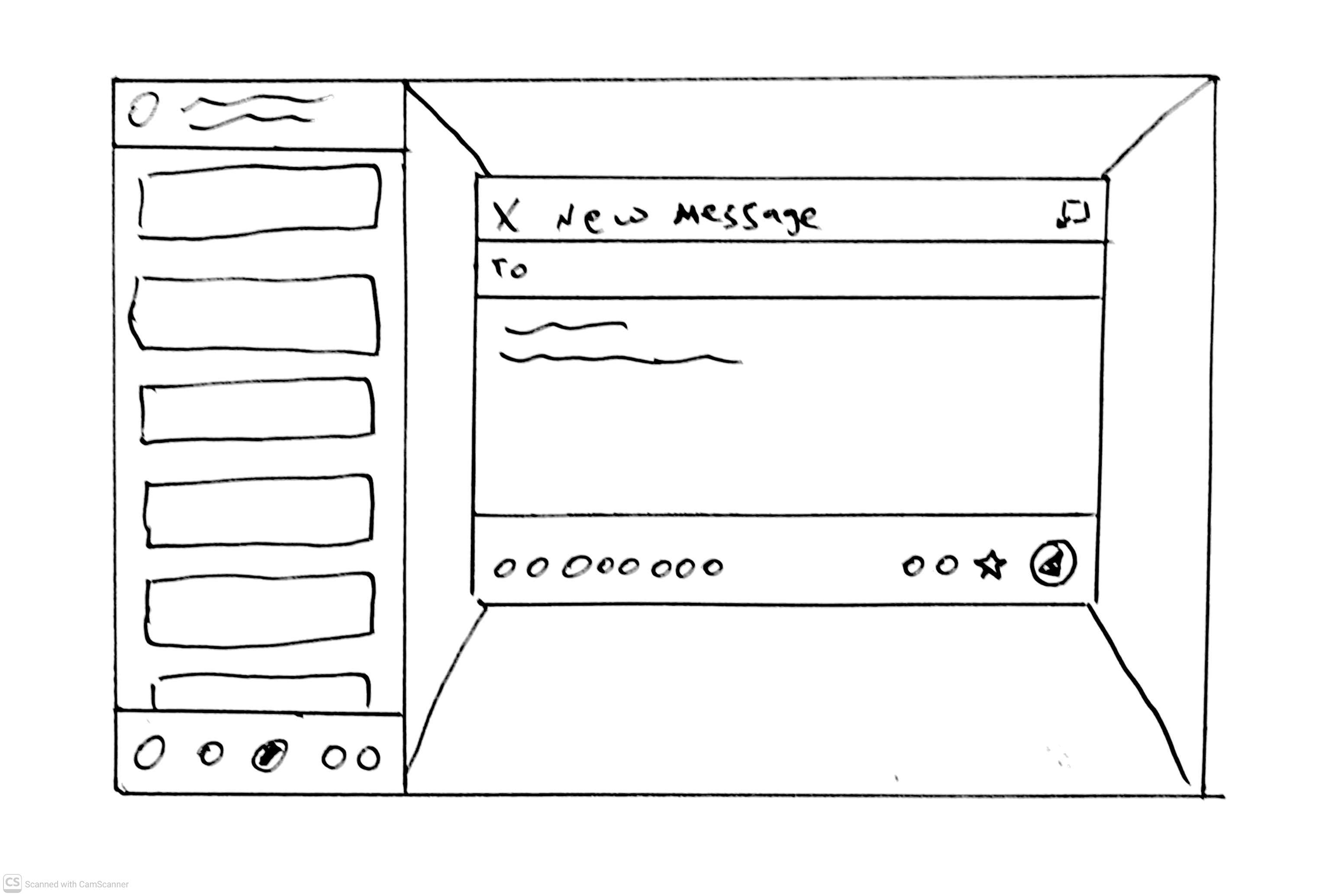
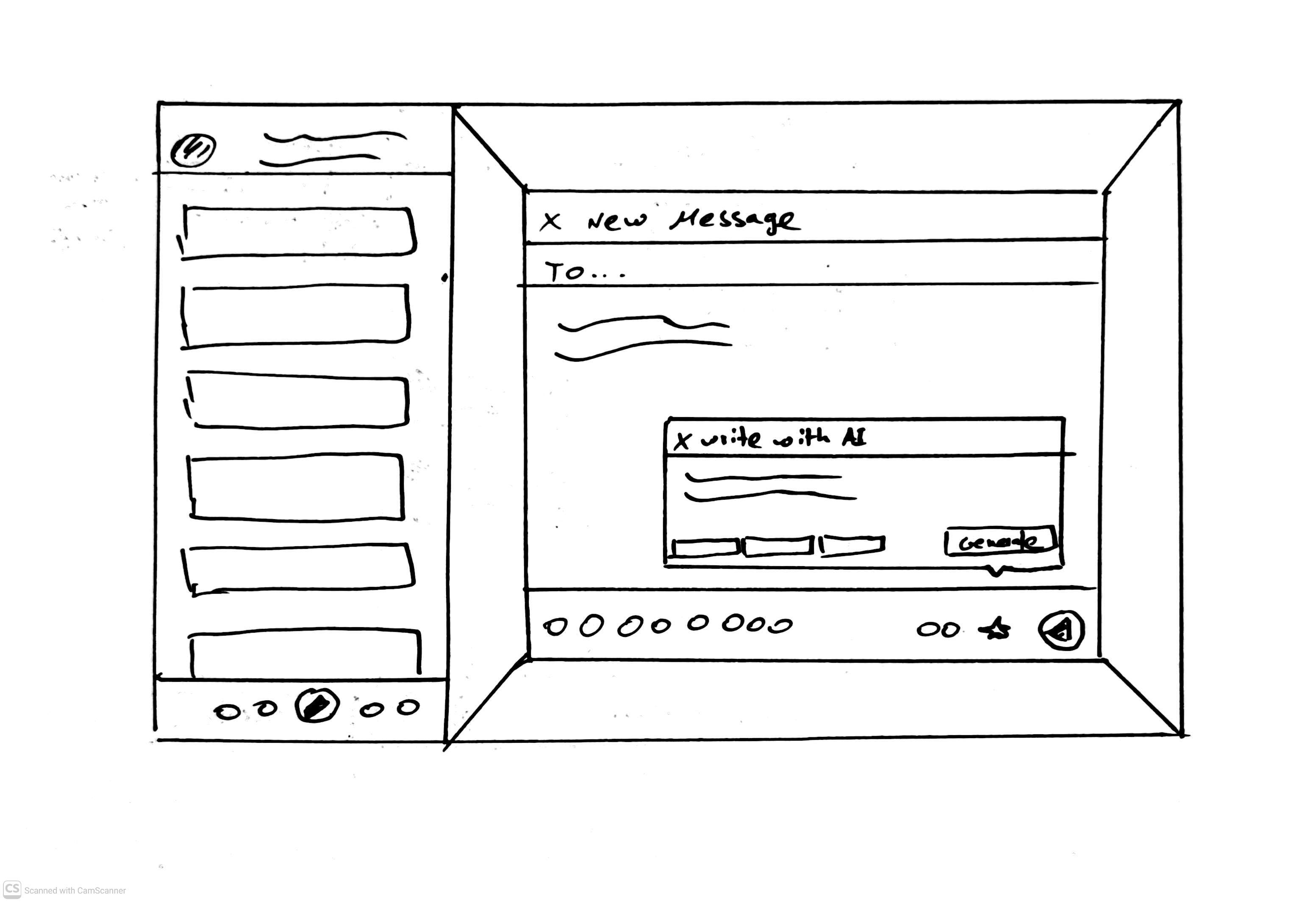
Solution II
Pros
- Feels directly connected to the writing task Because it appears inside the composer,it feels like part of the writing workflow.
- Good focus - Users can focus on the AI without outside distractions.
Cons
- May cover important parts of the email - The floating panel can hide the text the user is working on.
- Can feel cramped - The modal is small, and a floating window adds clutter.
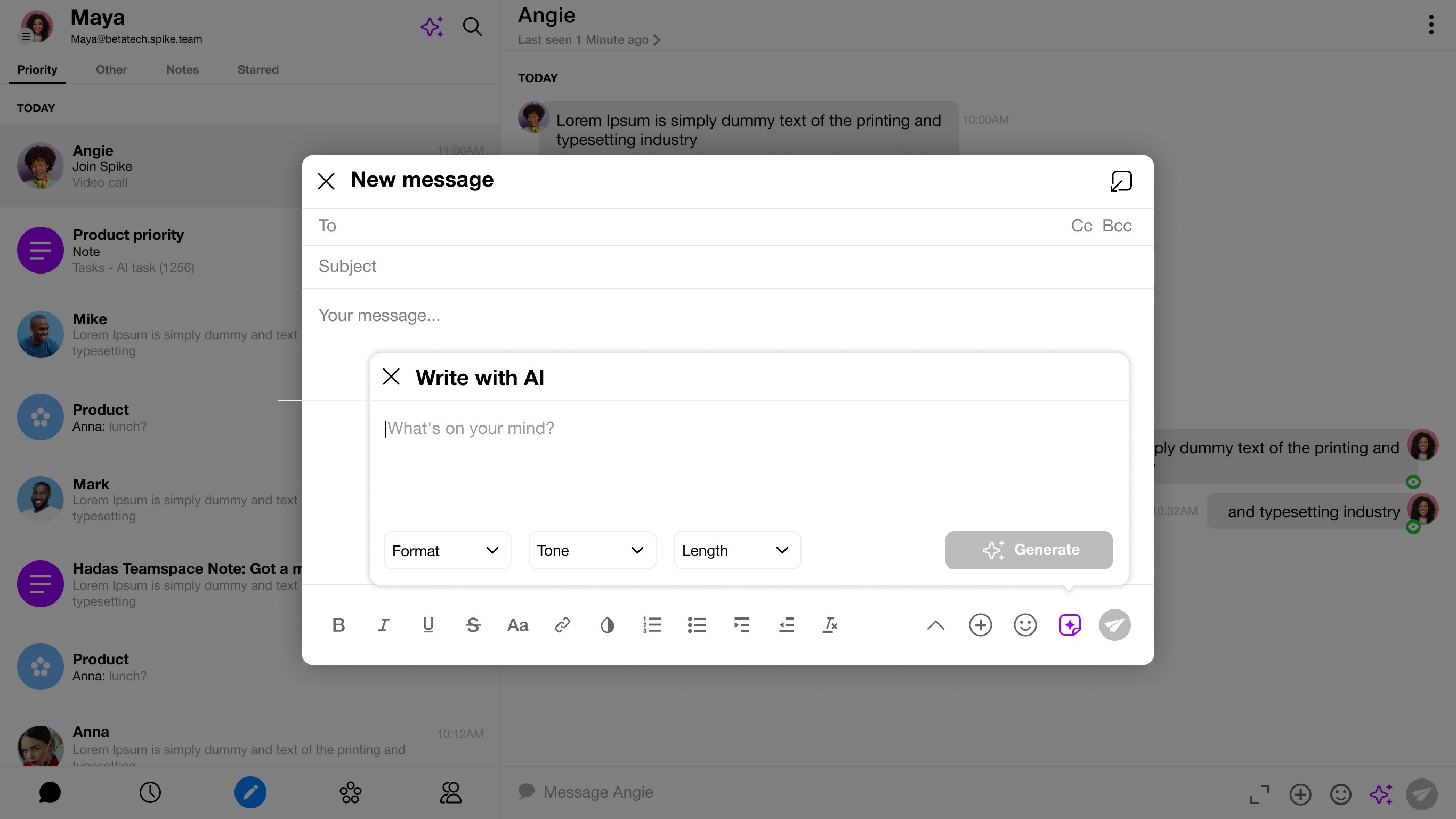
Design - Solution II selected
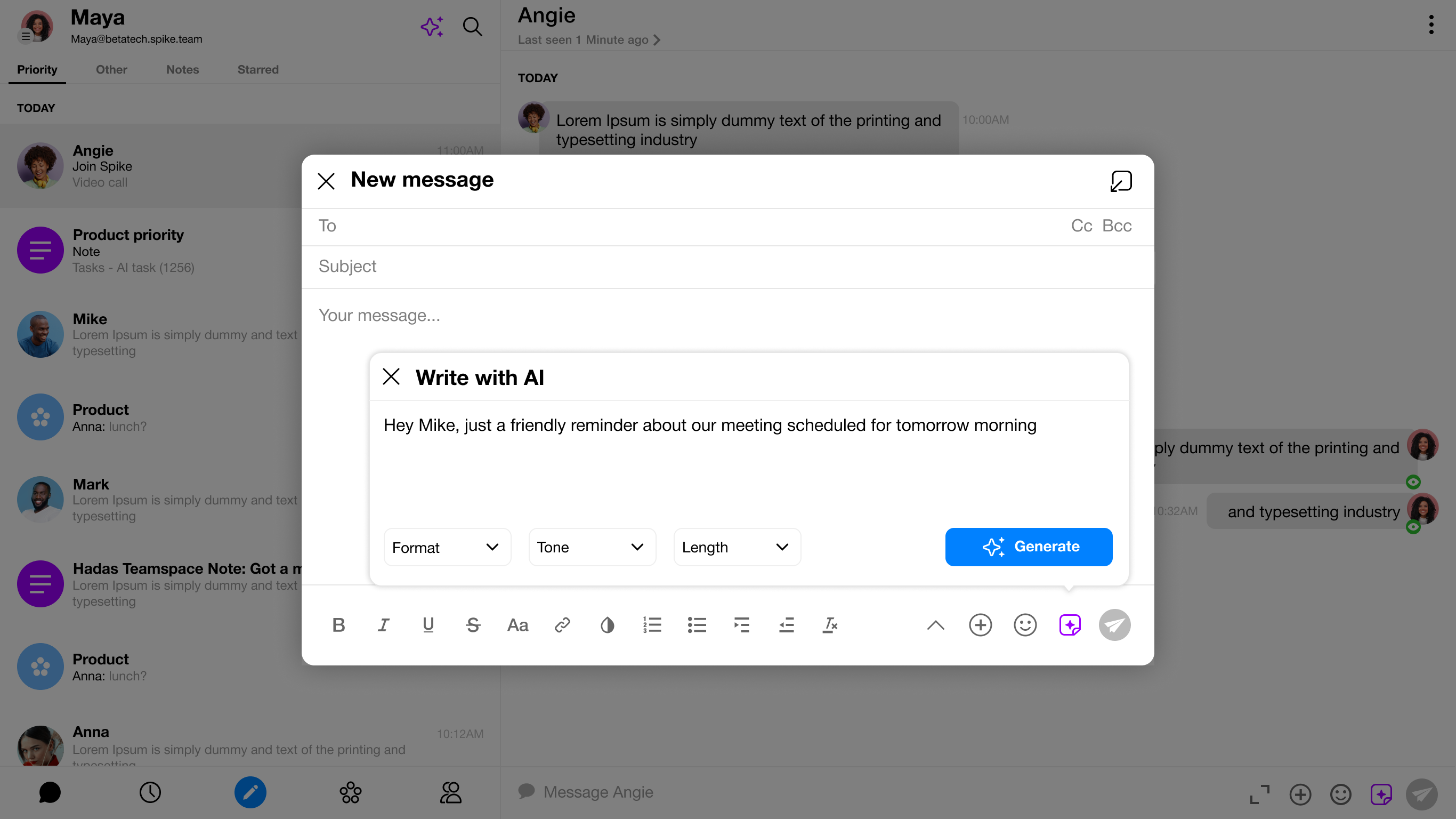
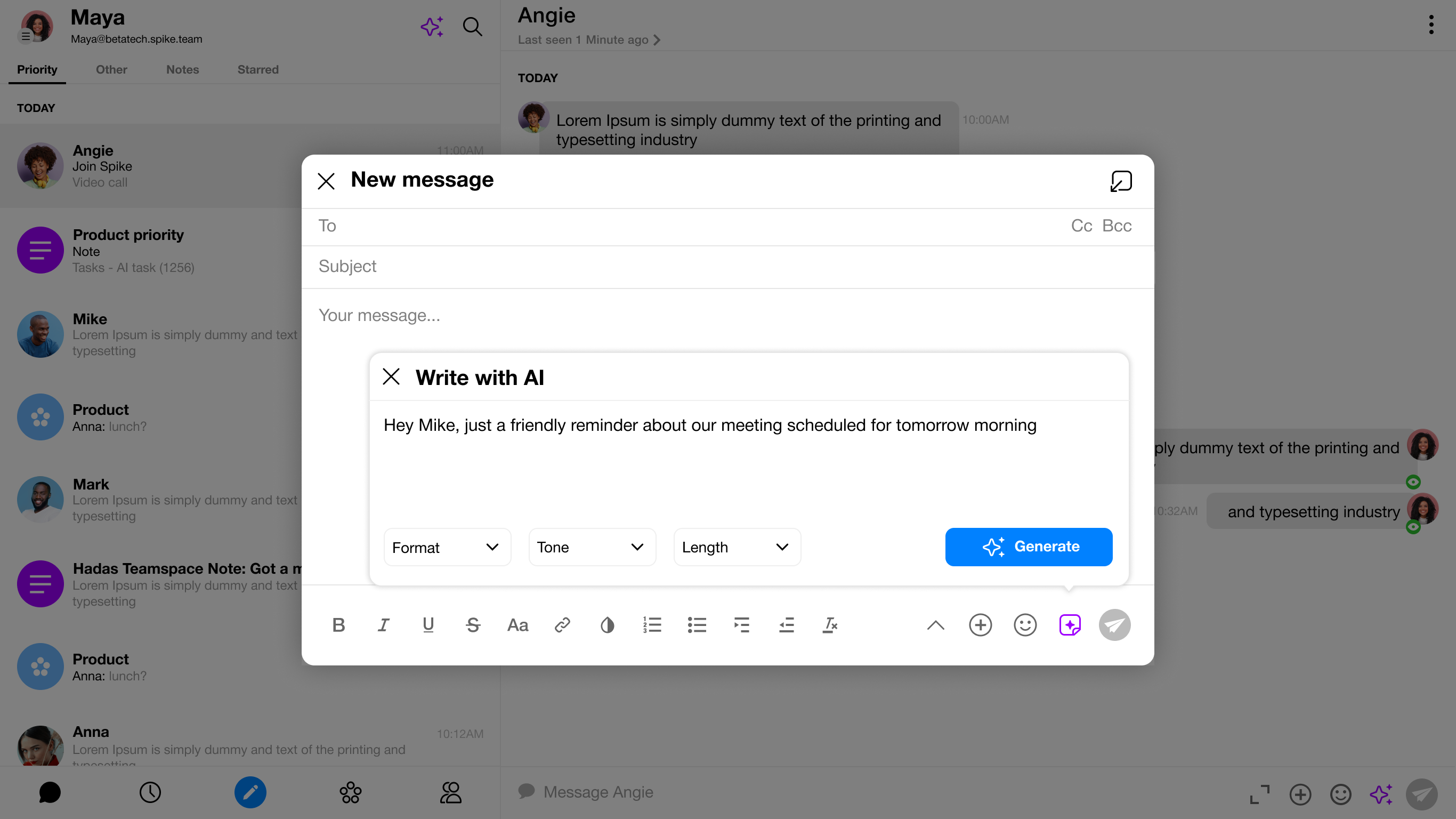
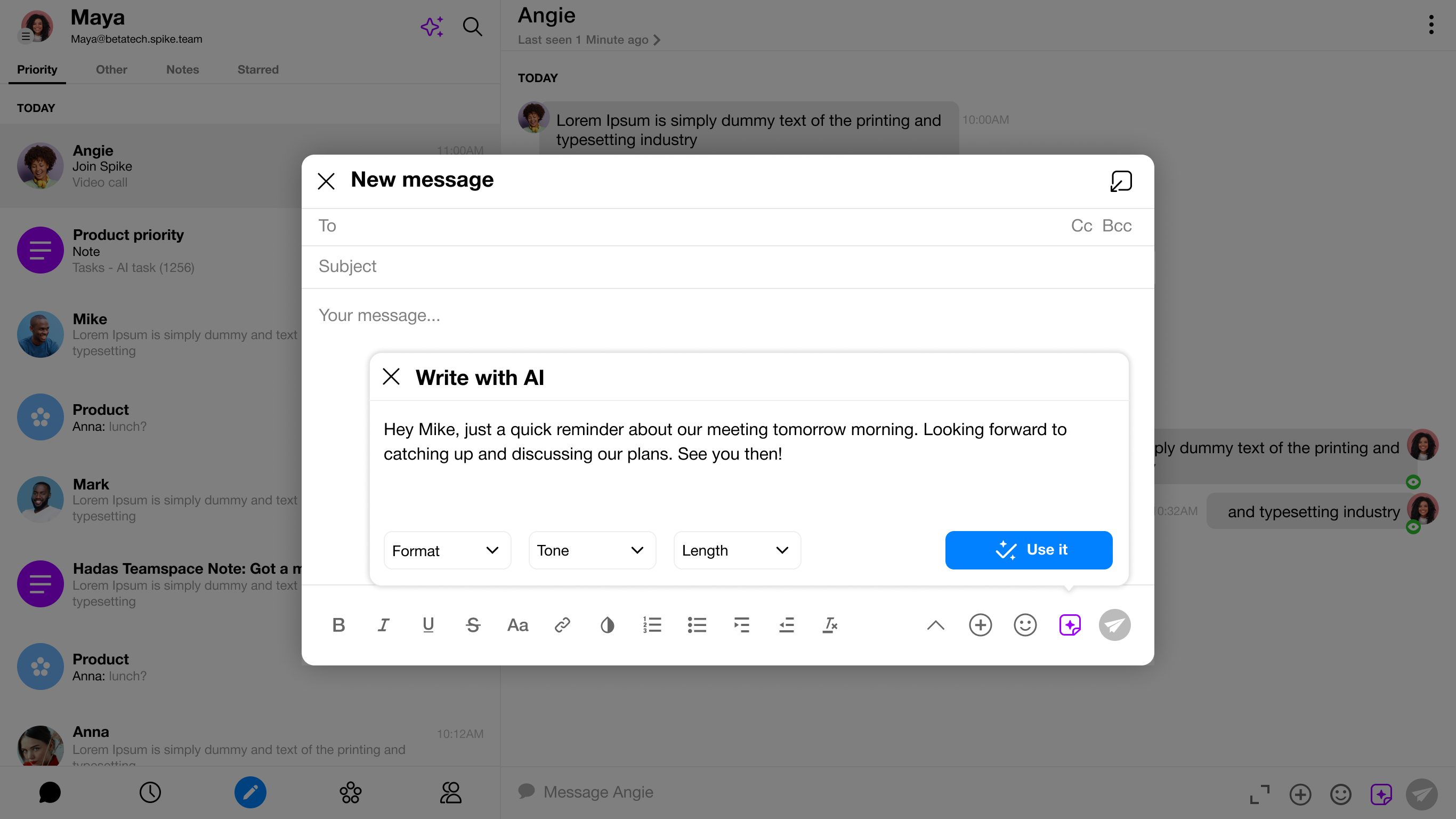
After talking it through, we went with the second option. It just felt easier for users anda bit more fresh. They can generate text and drop it right into their email.
Results
We analysed user data and we saw a 61% drop-offafter generation and 90% after using the AI response.
100% (15k)
Users clicked the AI button

39%(5.9k)
Only continued to generate
10% (1.5k)
Used the result
Feedback from users
To better understand the problem we gathered a feedback from some users.
User A - focused on generation experience
- “I hit Generate, but then I wasn’t totally sure what I was supposed to do next. I saw the result, but the ‘Use it’ button didn’t feel super obvious, so I just ignored it.”
- Low Confidence in Generated Content - User A doubts whether the AI output is accurate, relevant, or useful.
User B - focused on AI response
- “I tried generating something, but I wasn’tsure if clicking ‘Use it’ would replace my whole email. I didn’t want to mess anything up, so I didn’t touch it.”
- Irrelevant or Generic AI Responses - he feelsthat the AI response doesn’t match their needsor is too templated.
Insights from users
Users were curious but unsure, resulting in low engagement.

Confusion After Generation
The “Use it” button isn’t clear, so users hesitate and avoid taking action.

Low trust
Users hesitated to use the generated results.

Users misunderstand the “Use it” button
many assume clicking it will send the email, which creates hesitation and drop-off.
Improved the AI
Clarifying the AI
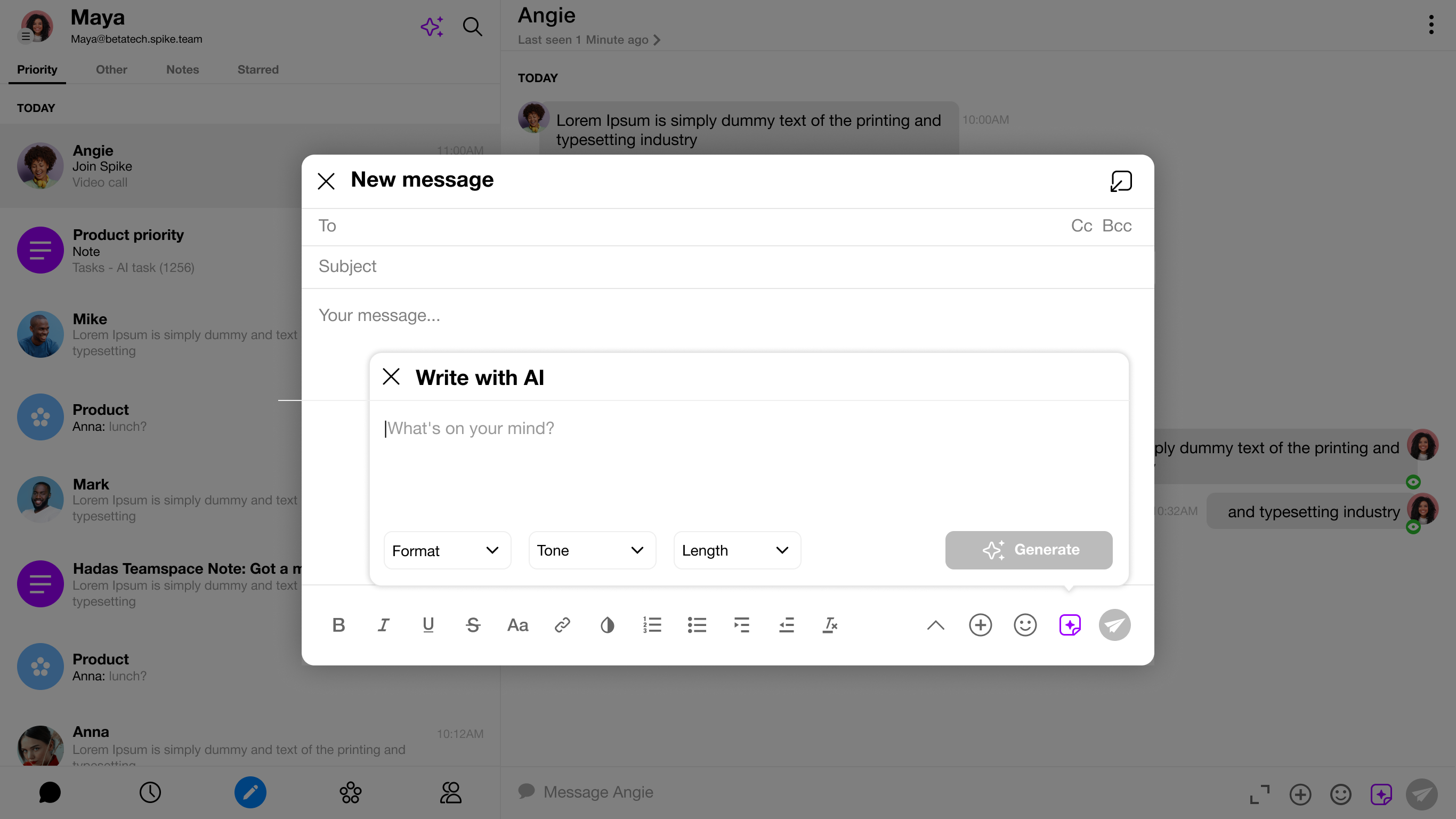
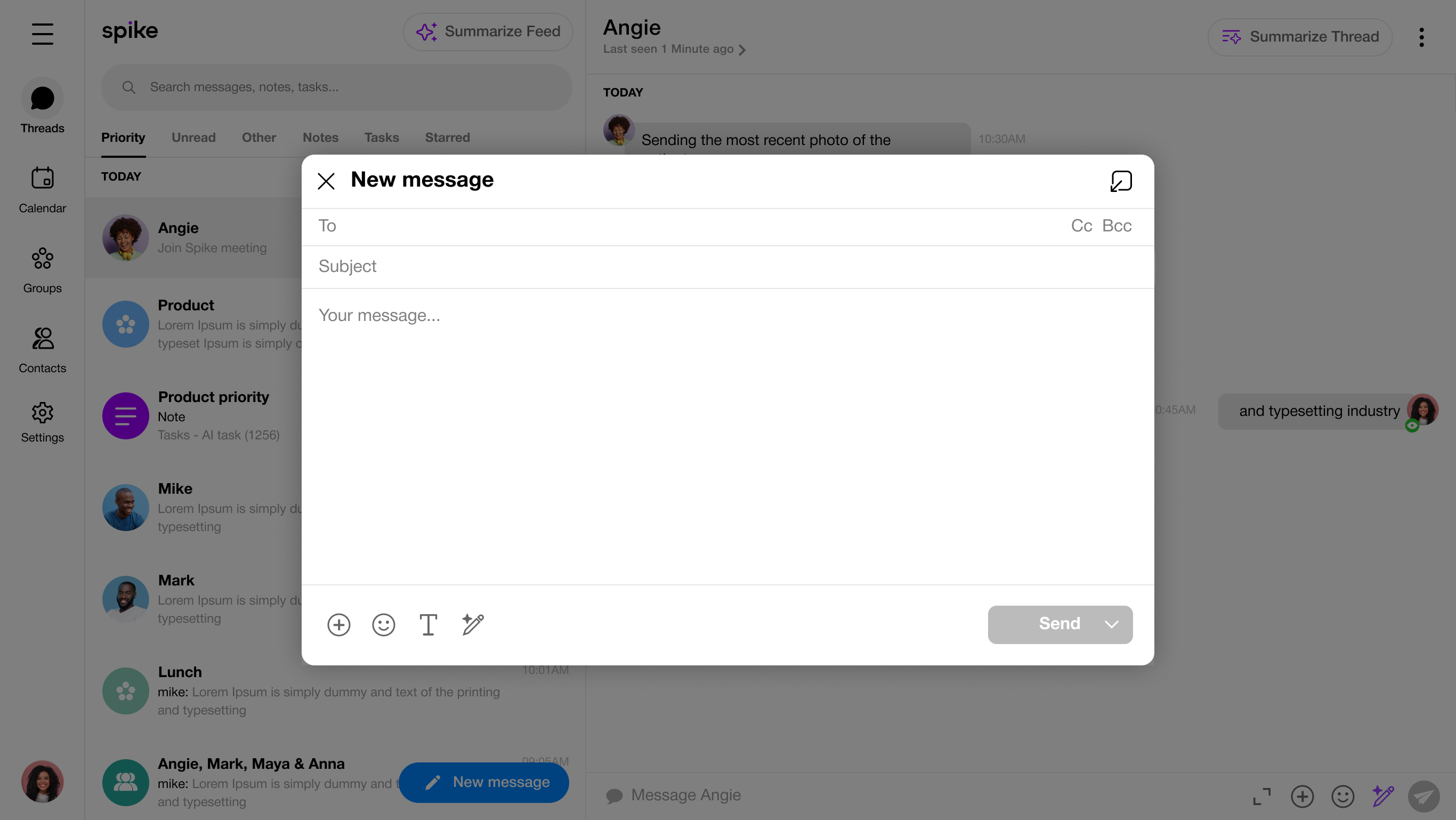
I updated the AI icon to make it clearer what the button does.
Making the AI Section Clearer
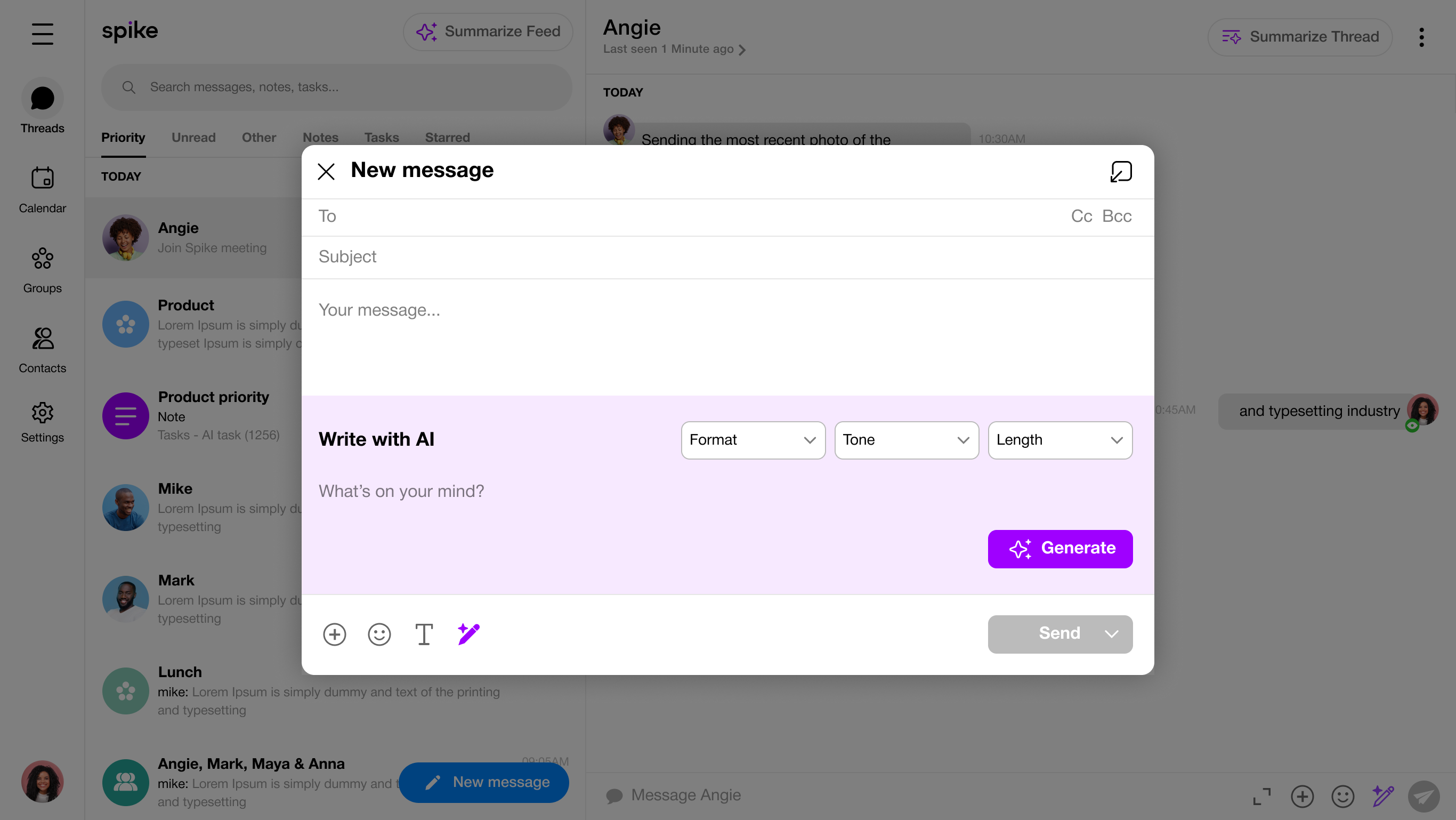
The AI section is easier to understand now. A purple background highlights it, the AI icon shows the toggle action,and the Format / Tone / Length filters are at the top so users can see they apply to the text they type.
Using the Response and send message
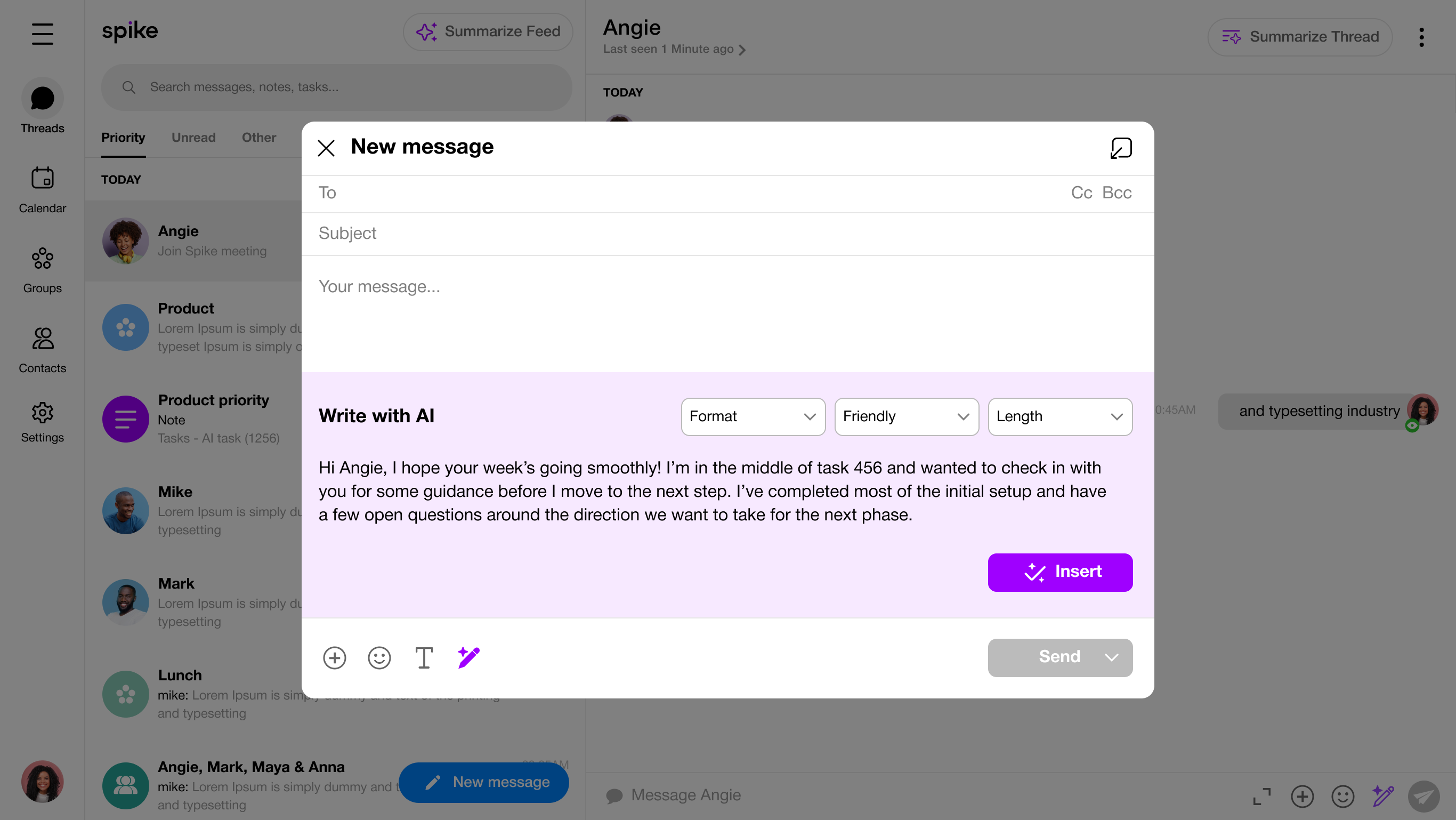
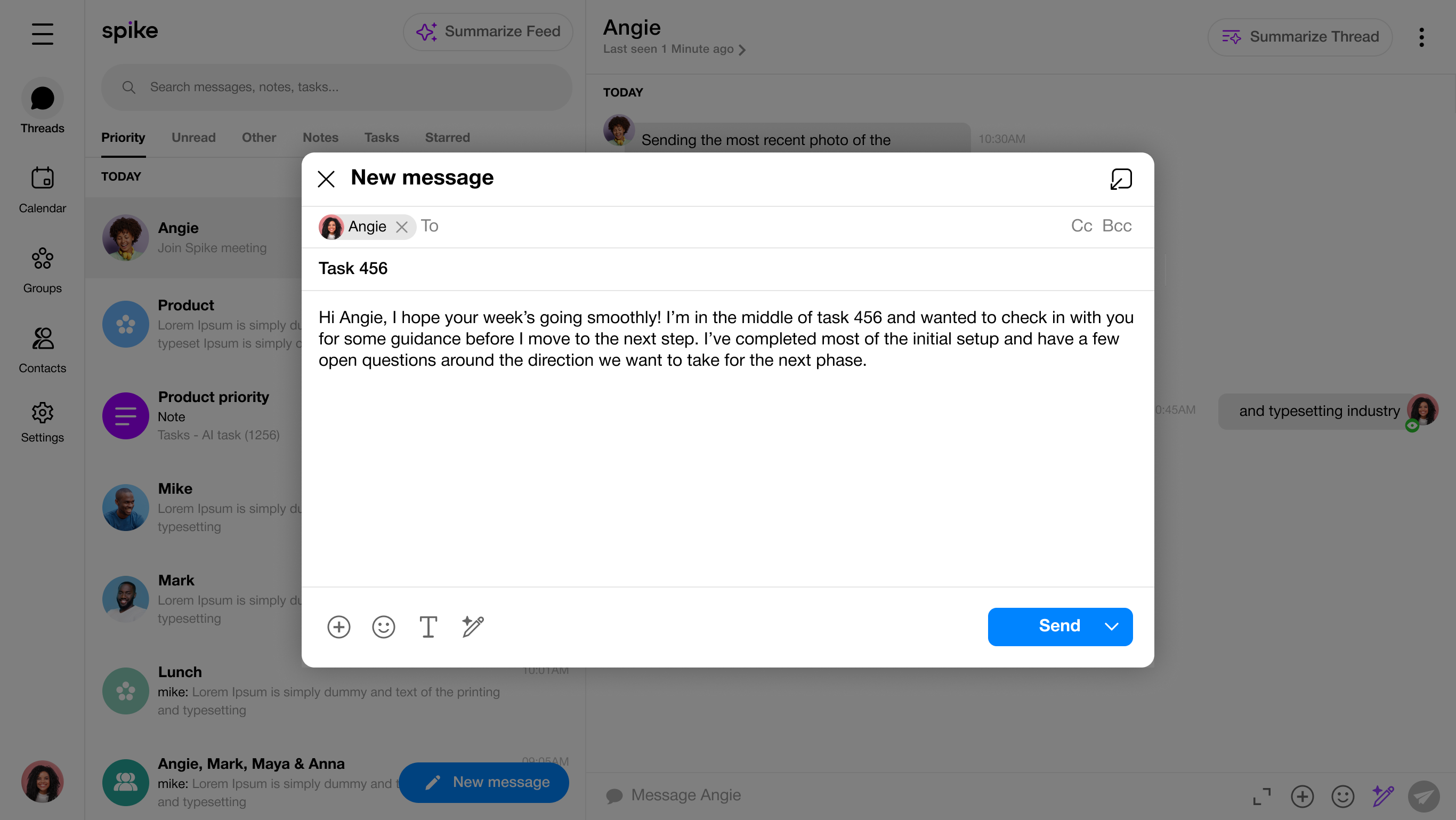
After careful research, I realized users didn’t trust or understand the “Use it” button. I updated it to “Insert” to make it clear that it doesn’t send the email it just adds the AI-generated content to the draft for editing before sending.
Final Thoughts
Reflecting on designing AI-assisted email writing experiences
This process helped me better understand the challenges users face when writing professional emails. By focusing on both user needs and business goals, I was able to explore AI-driven solutions that reduce writing time, improve confidence, and create a smoother communication experience.
The early sketches and feedback also highlighted the importance of clarity, simplicity, and user control when designing AI-assisted tools.

Spike
Write with AI
The AI tool is embedded in email to improve writing efficiency
Web · Desktop App · UX/UI · 2023
Company Background
Collaborative email platform
Spike is a collaborative email platform that transforms email into a chat-like experience. It brings multiple email accounts into a single interface, enables team collaboration through shared workspaces, and integrates AI tools to support writingand message organization.Write with AI tool created to support users in writing messages more efficiently, reducing the mental effort involved in finding the right words and saving time throughout the writing process.
The Problem
Composing emails is a time consuming process for many users.
Users struggle to quickly create clear, well worded messages.
User Research
I analyzed the time required for users to compose an email to identify inefficiencies in the writing process.

Short email
1-2 sentences, quick reply 1-2 min

Basic email
3-5 sentences, standard request or response 2-10min.

Detailed email
explaining an issue, providing some context 10-30min
I gathered information from users to pinpoint the core issue.
“Trying to make my emails sound professional takes a lot of time 10 to 15 minutes for even a short message.”
‘’I know what I want to say, but finding the right words is exhausting. I keep rewriting the same sentences.”
‘’Balancing professionalism and friendliness is hard. I worry my emails come off too formal or too casual.”
“Even simple emails end up taking far longer than expected because I’m constantly editing for tone and clarity.”
“I wish I could write confident emails faster.
After a long day, the mental effort feels exhausting.”
“I often send multiple drafts to myself before it finally feels ready, which makes the process so time-consuming.”
Competitive Research
After my market research, I analysed Spike’s key competitors to identify their strengths, weaknesses, and unique offerings.
Shortwave - Direct
Strength
- Inline AI drafting - Generates professional email drafts from short prompts.
- Conversation summarization - Summarizes long email threads to highlight key points.
Weakness
- Limited tone personalization - Drafts can feel generic or overly formal.
- Reactive assistance - AI only suggests text after prompts, rather than guiding composition.
- Focused on draft generation - Offers minimal support for complex email structure or nuanced messaging.
- Context limitations - Does not fully account for conversation history or recipient-specific nuances.

Notion - Indirect
Strength
- Flexible rewriting - Users could easily rephrase text for tone, clarity,or conciseness.
- Integrated workspace - AI worked seamlessly within Notion documents, reducing tool switching.
- Tone adjustment - Provided options for formality and clarity tailored to different writing styles.
Weakness
- Not email native - Required users to draft in Notion and then exportor copy content into an email client.
- Subscription requirement - Full AI features were behind a paidNotion plan.
- Confusing AI access - AI button is hard to find, making it difficult to use.
Key Insights: Email Writing
I spotted patterns that explained what users want.
01
Drafting emails takes too long
Users often spend several minutes even for short messages thinking about structure, wording, and tone.
02
Tone causes hesitation
Many users worry their emails might come across as too formal, too casual, or unclear, leading to multiple rewrites.
03
Struggling with clarity
Users struggle to convey their message effectively while keeping emails concise and easy to read.
04
Email repetition is tiring
Writing follow-ups, introductions, or requests repeatedly adds mental fatigue and frustration.
05
Low confidence
Users second-guess phrasing or wording, which slows down productivity and increases stress.
Solutions Overview
Once we knew the main problem, we started coming upwith solutions that worked for users and the business.
User Goals
- Create an intuitive AI-powered tool that assists users in writing more polished, coherent, and effective emails.
- Enhance the assistant by adding tone adjustments, enabling users to make their emails shorter or longer based on their needs.
Business Goals
- Offer the AI tool with both free and premium plans, allowing users to access basic features for free while providing advanced options forpaid users.
Flowchart
Next, we’ll review the user flow, showing the journey,key features, and design decisions.
Wireframes
Solution I
Pros
- Keeps focus on writing - AI opens on the side without covering the composer
- Familiar pattern - Right-side panels are common and easy to understand.
Cons
- Tight layout - Three columns can make the writing area feel narrow.
- More visual noise - Extra panel adds complexity.
Solution II
Pros
- Feels directly connected to the writing task - Because it appears inside the composer, it feels like part of the writing workflow.
- Good focus - Users can focus on the AI without outside distractions.
Cons
- May cover important parts of the email - The floating panel can hide the text the user is working on.
- Can feel cramped - The modal is small, and a floating window adds clutter.
Design - Solution II selected
After talking it through, we went with the second option. It just felt easier for users anda bit more fresh. They can generate text and drop it right into their email.
Results
We analysed user data and we saw a 61% drop-offafter generation and 90% after using the AI response.
100% (15k)
Users clicked the AI button

39%(5.9k)
Only continued to generate
10% (1.5k)
Used the result
Feedback from users
To better understand the problem we gathered a feedback from some users.
User A - focused on generation experience
- “I hit Generate, but then I wasn’t totally sure what I was supposed to do next. I saw the result, but the ‘Use it’ button didn’t feel super obvious, so I just ignored it.”
- Low Confidence in Generated Content - User A doubts whether the AI output is accurate, relevant, or useful.
User B - focused on AI response
- “I tried generating something, but I wasn’tsure if clicking ‘Use it’ would replace my whole email. I didn’t want to mess anything up, so I didn’t touch it.”
- Irrelevant or Generic AI Responses - he feelsthat the AI response doesn’t match their needsor is too templated.
Insights from users
Users were curious but unsure, resulting in low engagement.

Confusion After Generation
The “Use it” button isn’t clear, so users hesitate and avoid taking action.

Low trust
Users hesitated to use the generated results.

Users misunderstand the “Use it” button
many assume clicking it will send the email, which creates hesitation and drop-off.
Improved the AI
Clarifying the AI
I updated the AI icon to make it clearer what the button does.
Making the AI Section Clearer
The AI section is easier to understand now. A purple background highlights it, the AI icon shows the toggle action,and the Format / Tone / Length filters are at the top so users can see they apply to the text they type.
Using the Response and send message
After careful research, I realized users didn’t trust or understand the “Use it” button. I updated it to “Insert” to make it clear that it doesn’t send the email it just adds the AI-generated content to the draft for editing before sending.
Final Thoughts
Reflecting on designing AI-assisted email writing experiences
This process helped me better understand the challenges users face when writing professional emails. By focusing on both user needs and business goals, I was able to explore AI-driven solutions that reduce writing time, improve confidence, and create a smoother communication experience.
The early sketches and feedback also highlighted the importance of clarity, simplicity, and user control when designing AI-assisted tools.

Spike
Write with AI
The AI tool is embedded in email to
improve writing efficiency
Web · Desktop App · UX/UI · 2023
Company Background
Collaborative email platform
Spike is a collaborative email platform that transforms email into a chat-like experience. It brings multiple email accounts into a single interface, enables team collaboration through shared workspaces, and integrates AI tools to support writingand message organization.Write with AI tool created to support users in writing messages more efficiently, reducing the mental effort involved in finding the right words and saving time throughout the writing process.
The Problem
Composing emails is a time consuming process for many users.
Users struggle to quickly create clear, well worded messages.
User Research
I analyzed the time required for users to
compose an email to identify inefficiencies
in the writing process.
Short email
1-2 sentences, quick reply 1-2 min
Basic email
3-5 sentences, standard request or response 2-10min.
Detailed email
explaining an issue, providing some context 10-30min
I gathered information from users to pinpoint the core issue.
“Trying to make my emails sound professional takes a lot of time 10 to 15 minutes for even a short message.”
‘’I know what I want to say, but finding the right words is exhausting. I keep rewriting the same sentences.”
‘’Balancing professionalism and friendliness is hard. I worry my emails come off too formal or too casual.”
“Even simple emails end up taking far longer than expected because I’m constantly editing for tone and clarity.”
“I wish I could write confident emails faster.
After a long day, the mental effort feels exhausting.”
“I often send multiple drafts to myself before it finally feels ready, which makes the process so time-consuming.”
Competitive Research
After my market research, I analysed Spike’s key competitors to identify their strengths, weaknesses, and unique offerings.
Shortwave - Direct
Strength
- Inline AI drafting - Generates professional email drafts from short prompts.
- Conversation summarization - Summarizes long email threads to highlight key points.
Weakness
- Limited tone personalization - Drafts can feel generic or overly formal.
- Reactive assistance - AI only suggests text after prompts, rather than guiding composition.
- Focused on draft generation - Offers minimal support for complex email structure or nuanced messaging.
- Context limitations - Does not fully account for conversation history or recipient-specific nuances.
Notion - Indirect
Strength
- Flexible rewriting - Users could easily rephrase text for tone, clarity,or conciseness.
- Integrated workspace - AI worked seamlessly within Notion documents, reducing tool switching.
- Tone adjustment - Provided options for formality and clarity tailored to different writing styles.
Weakness
- Not email native - Required users to draft in Notion and then exportor copy content into an email client.
- Subscription requirement - Full AI features were behind a paidNotion plan.
- Confusing AI access - AI button is hard to find, making it difficult to use.
Key Insights: Email Writing
I spotted patterns that explained what users want.
01
Drafting emails takes too long
Users often spend several minutes even for short messages thinking about structure, wording, and tone.
02
Tone causes hesitation
Many users worry their emails might come across as too formal, too casual, or unclear, leading to multiple rewrites.
03
Struggling with clarity
Users struggle to convey their message effectively while keeping emails concise and easy to read.
04
Email repetition is tiring
Writing follow-ups, introductions, or requests repeatedly adds mental fatigue and frustration.
05
Low confidence
Users second-guess phrasing or wording, which slows down productivity and increases stress.
Solutions Overview
Once we knew the main problem, we started coming upwith solutions that worked for users and the business.
User Goals
- Create an intuitive AI-powered tool that assists users in writing more polished, coherent, and effective emails.
- Enhance the assistant by adding tone adjustments, enabling users to make their emails shorter or longer based on their needs.
Business Goals
- Offer the AI tool with both free and premium plans, allowing users to access basic features for free while providing advanced options forpaid users.
Flowchart
Next, we’ll review the user flow, showing the journey,key features, and design decisions.
Wireframes
Solution I
Pros
- Keeps focus on writing - AI opens on the side without covering the composer.
- Familiar pattern - Right-side panels are common and easy to understand.
Cons
- Tight layout - Three columns can make the writing area feel narrow.
- More visual noise - Extra panel adds complexity.
Solution II
Pros
- Feels directly connected to the writing task - Because it appears inside the composer, it feels like part of the writing workflow.
- Good focus - Users can focus on the AI without outside distractions.
Cons
- May cover important parts of the email - The floating panel can hide the text the user is working on.
- Can feel cramped - The modal is small, and a floating window adds clutter.
Design - Solution II selected
After talking it through, we went with the second option. It just felt easier for users anda bit more fresh. They can generate text and drop it right into their email.
Results
We analysed user data and we saw a 61% drop-offafter generation and 90% after using the AI response.
100% (15k)
Users clicked the AI button
39%(5.9k)
Only continued to generate
10% (1.5k)
Used the result
Feedback from users
To better understand the problem we gathered a feedback from some users.
User A - focused on generation experience
- “I hit Generate, but then I wasn’t totally sure what I was supposed to do next. I saw the result, but the ‘Use it’ button didn’t feel super obvious, so I just ignored it.”
- Low Confidence in Generated Content - User A doubts whether the AI output is accurate, relevant, or useful.
User B - focused on AI response
- “I tried generating something, but I wasn’tsure if clicking ‘Use it’ would replace my whole email. I didn’t want to mess anything up, so I didn’t touch it.”
- Irrelevant or Generic AI Responses - he feelsthat the AI response doesn’t match their needsor is too templated.
Insights from users
Users were curious but unsure, resulting in low engagement.
Confusion After Generation
The “Use it” button isn’t clear, so users hesitate and avoid taking action.

Low trust
Users hesitated to use the generated results.

Users misunderstand the “Use it” button
many assume clicking it will send the email, which creates hesitation and drop-off.
Improved the AI
Clarifying the AI
I updated the AI icon to make it clearer what the button does.
Making the AI Section Clearer
The AI section is easier to understand now. A purple background highlights it, the AI icon shows the toggle action,and the Format / Tone / Length filters are at the top so users can see they apply to the text they type.
Using the Response and send message
After careful research, I realized users didn’t trust or understand the “Use it” button.
I updated it to “Insert” to make it clear that it doesn’t send the email it just adds the
AI-generated content to the draft for editing before sending.